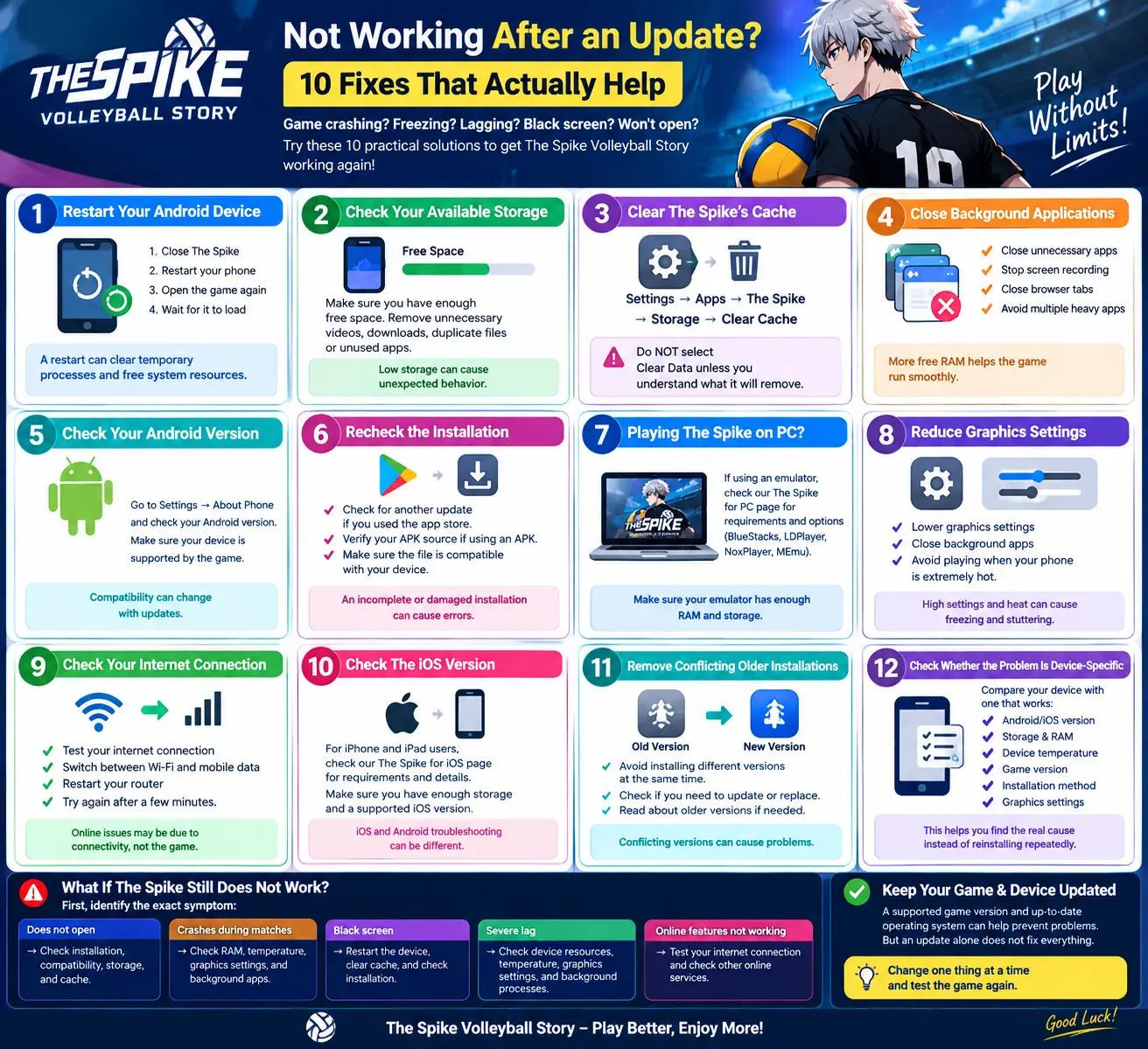
The Spike Volleyball Story Not Working After an Update? 10 Fixes That Actually Help
Have you updated The Spike Volleyball Story and suddenly noticed that the game is crashing, freezing, lagging, showing a black screen, or refusing to open? An update does not always mean the problem is with the game itself. Your device storage, Android version, available RAM, cached files, graphics settings, or an incomplete installation can also cause problems.
If you are looking for the latest information about the game, you can also visit our Home page for more The Spike Volleyball Story resources.
This guide explains practical steps you can try when The Spike Volleyball Story stops working properly after an update.
1. Restart Your Android Device
Start with the simplest solution.
Close The Spike completely and restart your phone. A restart can clear temporary background processes and free some system resources.
After restarting:
- Open the game again.
- Wait for the game to load completely.
- Check whether the problem is still present.
If the game works normally after restarting, the issue may have been caused by a temporary system or background-process problem.
2. Check Your Available Storage
Low storage can cause applications to behave unexpectedly.
Open your phone’s storage settings and check how much free space is available. If your device is nearly full, remove unnecessary videos, downloads, duplicate files, or unused applications.
Try to keep enough free space for Android and the game to operate normally.
3. Clear The Spike’s Cache
Temporary cached data can sometimes become corrupted after an application update.
On most Android phones, you can try:
Settings → Apps → The Spike → Storage → Clear Cache
Be careful not to select Clear Data unless you understand what it will remove.
After clearing the cache, launch the game and check whether the issue has been resolved.
4. Close Background Applications
Running several demanding applications at the same time can reduce the amount of RAM available to the game.
Before launching The Spike:
- Close unnecessary apps.
- Stop screen recording if it is not required.
- Close browser tabs you do not need.
- Avoid running multiple heavy applications simultaneously.
This is particularly useful on devices with limited RAM.
5. Check Your Android Version
Game compatibility can change as applications receive new updates.
Check your Android version under your phone’s system settings and make sure your device is supported by the version of the game you are installing.
If the game worked previously but stopped working immediately after an update, compatibility is one of the areas worth checking.
6. Recheck the Installation
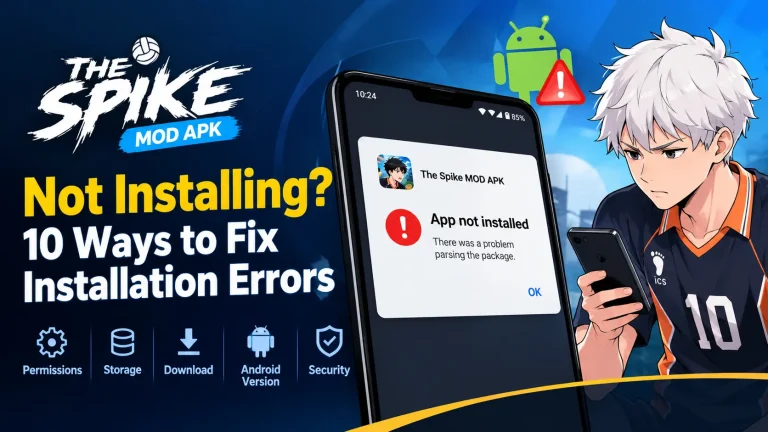
If the game displays messages such as App Not Installed, crashes immediately, or refuses to open after installation, the installation itself may be incomplete or damaged.
If you installed the official version through a supported app store, check whether another update is available.
If you are using an APK file, verify that the file is from a source you trust and that it is compatible with your Android device. Avoid installing modified or unknown files simply because they promise extra features.
7. Playing The Spike on PC?
If you are experiencing problems while running the game through an Android emulator, our The Spike for PC page covers PC requirements and emulator options such as BlueStacks, LDPlayer, NoxPlayer, and MEmu.
Make sure your emulator has enough RAM and storage allocated before launching the game.
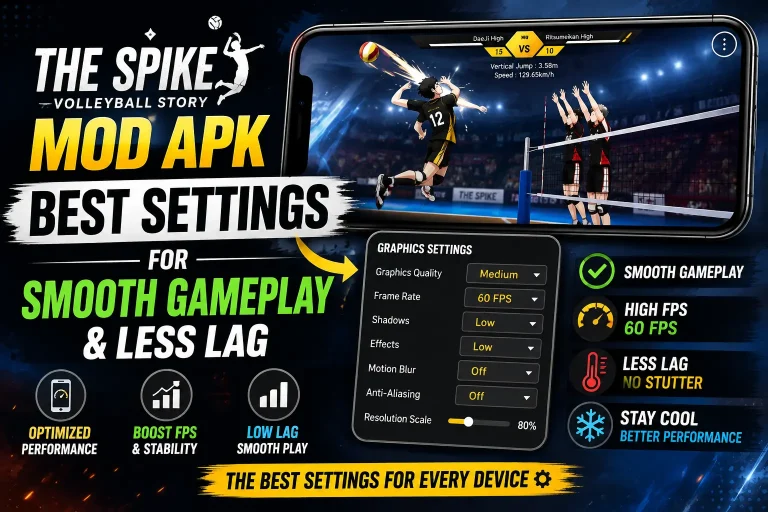
8. Reduce Graphics Settings
If the game opens but starts freezing or stuttering during matches, your graphics settings may be demanding too much from the device.
Where available, reduce graphics-related settings and close unnecessary background applications.
Also avoid playing while your phone is extremely hot. High device temperature can affect performance and may cause temporary slowdowns.
9. Check Your Internet Connection
Some problems may look like performance issues but are actually related to connectivity.
If a particular online feature does not work:
- Test your internet connection.
- Switch between Wi-Fi and mobile data if possible.
- Restart your router if the connection is unstable.
- Try again after a few minutes.
If other online applications are also having connection problems, the issue may not be specific to The Spike.
10. Check The iOS Version
If you play The Spike on an Apple device, the troubleshooting process can be different from Android.
For iPhone and iPad users, you can check our The Spike for iOS page for information related to the iOS version, requirements, and available details.
Make sure your device has enough free storage and is running a supported version of iOS.
11. Remove Conflicting Older Installations
Installing different versions of the same application can sometimes create conflicts.
If you are moving from an older release to a newer one, make sure you understand whether your existing installation should be updated or replaced.
If you specifically need an earlier release, you can also check our The Spike Old Versions page for information about previous versions.
Before removing an application, check whether important local data or settings could be lost.
12. Check Whether the Problem Is Device-Specific
If The Spike works correctly on another compatible device but not on yours, the problem may be related to your phone rather than the game itself.
Compare:
- Android or iOS version
- Available storage
- Available RAM
- Device temperature
- Game version
- Installation method
- Graphics settings
This can help narrow down the cause instead of repeatedly reinstalling the game.
What If The Spike Still Does Not Work?
If you have tried the steps above and the problem continues, do not immediately assume that your device is permanently incompatible.
First identify the exact symptom.
Game does not open:
Check installation, compatibility, storage, and cached data.
Game crashes during matches:
Check RAM, temperature, graphics settings, and background applications.
Black screen:
Restart the device, clear cache, and check whether the installation is complete.
Severe lag:
Check device resources, temperature, graphics settings, and background processes.
Online features are not working:
Test your internet connection and check whether other online services work normally.
Keep Your Game and Device Updated
Using an up-to-date operating system and a supported game version can help avoid compatibility problems. However, an update alone does not guarantee that every issue will disappear.
When troubleshooting, change one thing at a time and test the game again. This makes it easier to identify what actually fixed the problem.
Final Thoughts
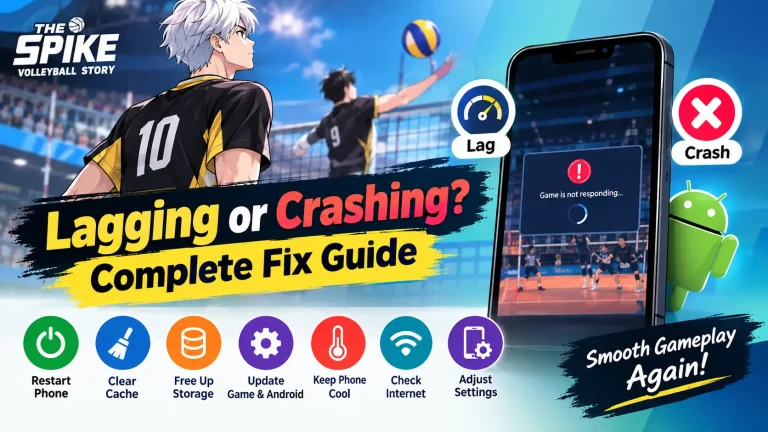
The Spike Volleyball Story problems after an update can have several causes, including insufficient storage, temporary cache files, limited system resources, overheating, compatibility issues, installation problems, or network connectivity.
Instead of reinstalling the game repeatedly, work through the troubleshooting steps one by one. Start with a device restart and storage check, then move to cache, background applications, compatibility, graphics, and installation checks.