Best Settings for The Spike Mod APK for Smooth Gameplay and Less Lag
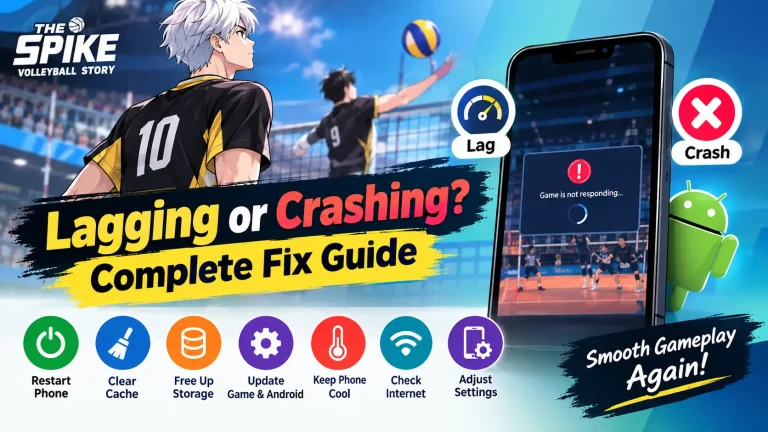
If The Spike Mod APK feels slow, stutters during rallies, or takes too long to respond when you try to spike or block, the problem may not be your internet connection alone. Graphics settings, frame rate, device temperature, background apps, and power-saving features can all affect how smoothly a mobile game runs.
The good news is that you usually do not need a new phone to improve performance. A few sensible changes can make gameplay noticeably more stable, especially on budget and mid-range Android devices.
In this guide, you will find the best settings for The Spike Mod APK, recommendations for different types of phones, ways to reduce FPS drops, and practical solutions for overheating, touch delay, and stuttering.
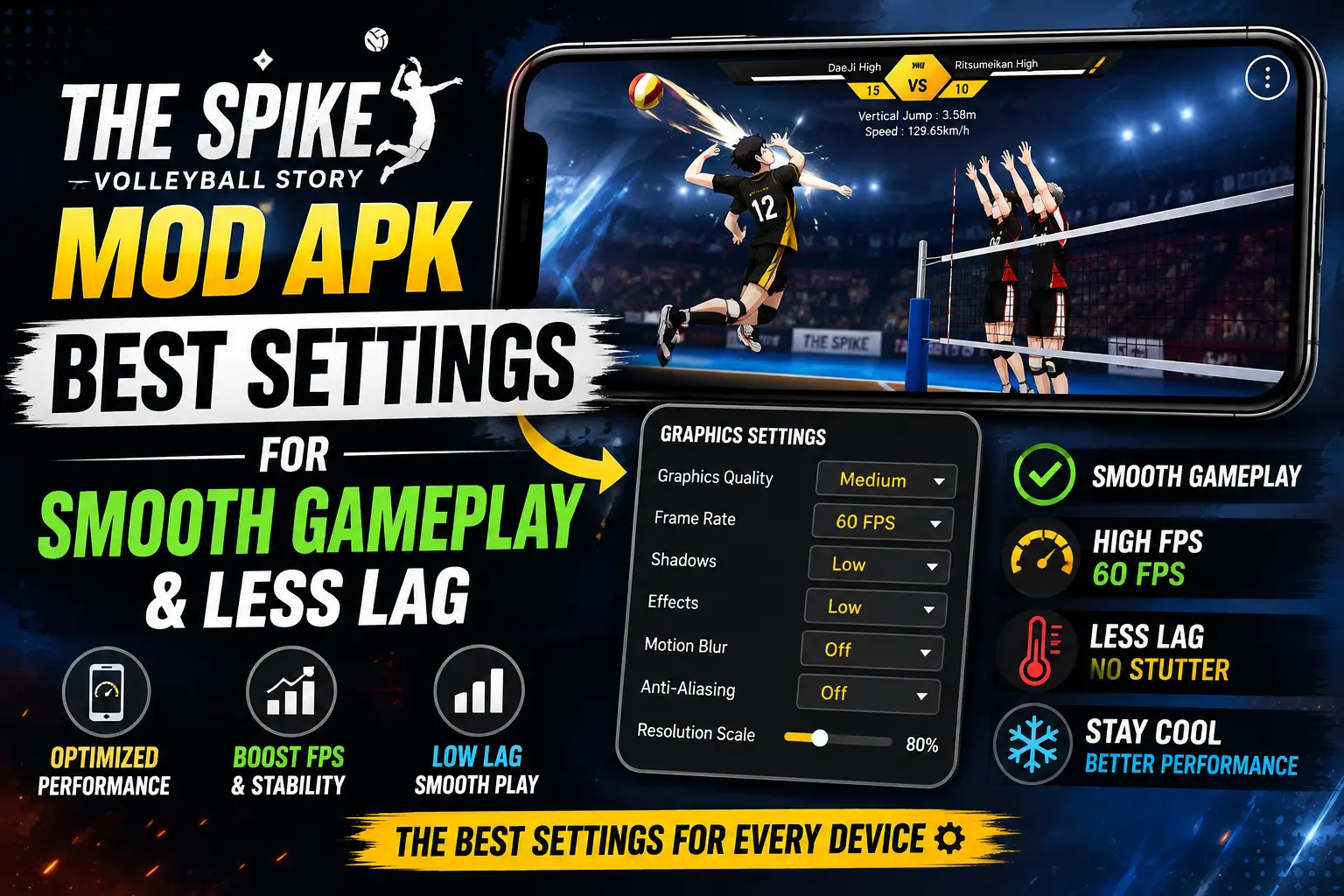
Quick recommendation: Start with medium or low graphics, use the highest frame-rate option your phone can maintain consistently, turn off unnecessary visual effects, disable battery-saving mode while gaming, and keep the phone cool.
Best The Spike Settings for Smooth Gameplay
Before changing advanced Android settings, start with the options inside the game.
| Setting | Recommended Value |
|---|---|
| Graphics Quality | Low–Medium |
| Frame Rate | Highest stable option |
| Shadows | Low or Off |
| Effects | Low–Medium |
| Motion Blur | Off |
| Anti-Aliasing | Low or Off |
| Environment Details | Low on weaker phones |
| Render/Resolution Scale | Reduce if available |
| Haptics | Off if you do not need vibration |
| Battery Saver | Off while gaming |
| Game Mode | On |
The exact options can vary between game versions and devices, so do not worry if your settings menu looks slightly different.
The most important rule is simple: a stable frame rate is generally better than maximum graphics that cause frequent drops.
Why The Spike Can Lag or Feel Slow
The Spike is a timing-focused volleyball game. When the frame rate becomes inconsistent, visual movement can feel less responsive and actions such as receiving, blocking, jumping, or spiking can become harder to time.
A modified APK may also behave differently across releases, so you can compare The Spike MOD APK Old Versions if you are experiencing problems after an update
There are several common causes:
- Graphics settings are too demanding for the phone
- Too many visual effects are enabled
- The phone is overheating
- Battery Saver or another power-saving mode is limiting performance
- Too many apps are running in the background
- The device has very little free storage
- The display or game is using an unsuitable refresh-rate configuration
- The game itself has a temporary performance issue
- A modified APK may be poorly optimized or incompatible with the current game version
Community reports also show that some players experience slow or inconsistent gameplay after graphics changes or updates, so the issue is not necessarily caused by weak hardware alone.
Best Settings by Phone Performance
Not every phone should use the same configuration. Instead of choosing settings based only on the age of your phone, pay attention to whether it can maintain a consistent frame rate during actual matches.
If you prefer playing on a larger screen, check our guide to The Spike MOD APK for PC for emulator settings and performance tips.
High-End Phones
If you have a modern flagship or gaming phone, you can start with higher settings.
Recommended configuration:
Graphics: High
Frame Rate: Highest stable option
Shadows: Medium/High
Effects: High
Motion Blur: Off
Anti-Aliasing: Medium/High
Resolution: Native or high
Environment Details: High
Haptics: Optional
Game Mode: On
Battery Saver: Off
If the game remains stable during long matches, there is little reason to lower everything.
However, maximum graphics are not automatically better. If high settings cause the phone to heat up and performance starts dropping after several matches, reduce effects or shadows first.
Mid-Range Phones
Mid-range phones usually benefit from a balanced configuration.
Graphics: Medium
Frame Rate: Highest stable option
Shadows: Low/Off
Effects: Medium
Motion Blur: Off
Anti-Aliasing: Low/Off
Resolution: Medium
Environment Details: Medium
Haptics: Off
Game Mode: On
Battery Saver: Off
This is often the best starting point for players who want a good combination of image quality and stable gameplay.
If you still notice frame drops, reduce effects and resolution/render scale before lowering every other setting.
Budget Phones
On weaker devices, consistency should be your priority.
Graphics: Low
Frame Rate: 30 FPS or highest stable option
Shadows: Off
Effects: Low
Motion Blur: Off
Anti-Aliasing: Off
Resolution: Low/Medium
Environment Details: Low
Haptics: Off
Game Mode: On
Background Apps: Closed
Battery Saver: Off
You may lose some visual detail, but a stable game is much more useful than attractive graphics that constantly stutter.
Older or Entry-Level Phones
Very old phones may struggle regardless of settings. In that situation, use the lowest available configuration.
Graphics: Minimum
Frame Rate: Lowest stable option
Shadows: Off
Effects: Off/Low
Motion Blur: Off
Anti-Aliasing: Off
Resolution: Low
Environment Details: Low
Haptics: Off
Background Apps: Closed
Do not expect every old device to maintain high frame rates. The goal is to find the most stable configuration your hardware can realistically handle.
Turn Down Graphics Before Sacrificing Everything Else
If The Spike is lagging, do not immediately change ten settings at once.
Start with the settings that usually place the greatest load on rendering:
1. Lower Resolution or Render Scale
Rendering fewer pixels can reduce GPU workload. Android’s own documentation notes that increasing the number of pixels a GPU has to process can increase frame-rendering time, particularly on less powerful hardware.
If your version of the game provides a render-scale option, try reducing it gradually rather than immediately selecting the lowest value.
2. Reduce Shadows
Shadows can add additional rendering work. If your phone struggles during intense scenes, try Low or Off.
3. Reduce Effects
Visual effects can become more noticeable during spikes, blocks, and other action-heavy moments. If the game is smooth in menus but stutters during rallies, reducing effects is worth trying.
4. Turn Off Motion Blur
Motion blur is mainly a visual effect. For a timing-based game, many players prefer it disabled because a sharper image makes fast-moving objects easier to follow.
What FPS Should You Use?
The best frame-rate setting is not necessarily the highest number shown in the menu.
A phone that constantly jumps between high and low frame rates can feel less consistent than one that maintains a lower but stable rate.
For example:
| Device Performance | Good Starting Target |
|---|---|
| High-end | 60 FPS or higher if reliably supported |
| Mid-range | 45–60 FPS |
| Budget | 30–45 FPS |
| Entry-level | Around 30 FPS |
Treat these as practical targets rather than guarantees.
If your phone can maintain 60 FPS consistently, use it. If it repeatedly falls from 60 to 30 during matches, try a lower setting that your device can hold more reliably.
Android’s GPU profiling documentation uses 16.67 ms per frame as the benchmark for 60 FPS rendering, illustrating why additional rendering workload can make frame delivery more difficult.
Check Variable Frame Rate and Display Settings
Some versions of The Spike have included options related to variable frame rate and newer graphics features. Community discussions indicate that players have experienced differences depending on the phone’s refresh-rate and power-management settings.
If your game provides a Variable Frame Rate option, test it rather than assuming that the highest fixed value will always be best.
Also check your phone’s display settings.
For example:
Settings → Display → Refresh Rate
If your phone supports a high refresh rate, make sure a battery-saving mode is not forcing the display down to a lower refresh rate while you are gaming.
The exact menu name depends on the manufacturer.
Disable Battery Saver While Playing
Battery-saving modes are designed to extend battery life, not provide maximum gaming performance.
If you notice that The Spike becomes noticeably slower while Battery Saver is enabled, turn it off before playing.
Quick Settings → Battery Saver → Off
You can turn it back on after your gaming session.
If your phone has a manufacturer-specific gaming mode, use the performance-oriented option where available.
Use Your Phone’s Game Mode
Many Android manufacturers provide their own gaming tools.
Depending on the phone, you may see features such as:
- Game Mode
- Game Booster
- Game Turbo
- Gaming Mode
- Performance Mode
- Touch optimization
- Notification blocking
The names and available features differ between manufacturers, so avoid blindly copying settings from another phone.
A useful configuration is usually:
Gaming Mode: On
Performance Profile: Balanced/Performance
Notifications: Blocked during gaming
Touch Optimization: On if available
Battery Saver: Off
If your phone becomes excessively hot in Performance Mode, switch back to a balanced profile and compare stability.
Close Unnecessary Background Apps
Before launching The Spike, close applications that you do not need.
Pay particular attention to apps that are:
- Streaming video
- Downloading files
- Uploading photos
- Synchronizing large amounts of data
- Using the camera
- Running demanding background processes
You do not need to obsessively clear every application from your phone. Modern Android systems already manage memory automatically. The goal is simply to prevent unnecessary heavy workloads from competing with your game.
Keep Your Phone Cool
Heat is one of the easiest performance problems to overlook.
When a phone becomes hot during a long gaming session, the system may reduce performance to control temperature. That can turn initially smooth gameplay into stuttering gameplay after 20 or 30 minutes.
Simple cooling tips
- Remove a thick case if it traps heat
- Avoid direct sunlight
- Play in a cool room
- Do not place the phone on a hot surface
- Take short breaks during long sessions
- Avoid unnecessary background apps
- Avoid charging while gaming when possible
If your phone becomes uncomfortably hot, stop playing and let it cool rather than trying to force maximum performance.
Should You Play While Charging?
It is better to avoid long gaming sessions while the phone is charging when possible.
Charging itself produces heat, and gaming adds another significant workload. Combining the two can make thermal management more difficult.
If you must play while charging:
- Keep the phone in a cool environment
- Remove a thick case if appropriate
- Avoid fast-charging modes if your phone offers a suitable alternative
- Lower graphics settings
- Stop if the device becomes excessively hot
Best Touch and Control Settings
Graphics are only half the experience. In a timing-based game, controls should feel predictable.
If the game provides sensitivity or control customization, start around the middle and adjust gradually.
Recommended approach
Touch Sensitivity: Medium to High
Button Size: Medium or Large
Button Opacity: Comfortable enough to see clearly
Haptic Feedback: Optional; disable it if you find vibration distracting
Joystick/Swipe Sensitivity: Medium, then adjust based on comfort
There is no universal “best” sensitivity. A setting that feels perfect on one player’s phone may feel too fast on another.
Does Haptic Feedback Cause Input Lag?
You should not assume that disabling haptics automatically removes a specific number of milliseconds of input delay. The actual effect depends on the device and implementation.
However, if vibration distracts you or you simply do not need it, turning it off is a reasonable choice.
Game Settings → Haptic/Vibration → Off
If you rely on vibration as feedback, keep it enabled. Gameplay comfort matters more than chasing a tiny theoretical advantage.
Improve Touch Response
If your character reacts slowly to taps or swipes, first determine whether the problem is actually touch input.
Try these steps:
- Clean the display.
- Check whether a screen protector is interfering with touch.
- Disable unnecessary accessibility overlays.
- Enable the phone’s gaming/touch optimization mode if available.
- Close heavy background applications.
- Restart the phone.
- Test the game again before changing advanced settings.
If the entire phone feels slow, the issue is probably not The Spike alone.
Network Tips for Online Features
Graphics settings affect local rendering, while network conditions mainly affect online communication.
If you experience disconnects, delayed online actions, or loading problems, check your connection separately.
Recommended connection habits
- Use a stable Wi-Fi connection when possible
- Stay reasonably close to your router
- Avoid large downloads while playing
- Pause cloud backups temporarily if they are consuming bandwidth
- Avoid switching between Wi-Fi and mobile data during an online session
- Test mobile data if your Wi-Fi connection is unstable
You do not need extremely high internet speed for gaming. Connection stability and latency are generally more important than having an enormous download speed.
Should You Use a VPN While Gaming?
A VPN adds another routing layer between your device and the destination server. Depending on the VPN and server location, that can increase latency.
If you do not need a VPN for a specific reason, test the game without one and compare the connection.
Do not assume that a VPN will automatically improve ping. In most situations, it is better to choose the connection route that gives you the most stable result.
Advanced Android Settings: Should You Change Developer Options?
Developer Options contain useful debugging and testing tools, but many popular “gaming optimization” tutorials recommend changing settings that are not guaranteed to improve game performance.
For example, Android documents Force GPU Rendering as a setting that forces apps to use GPU rendering for 2D drawing, particularly for apps that were not already optimized for it. That does not mean it will increase FPS in every modern game.
Likewise, Android explains that hardware overlays can actually reduce processing work in some situations, so blindly enabling Disable HW Overlays is not a universal gaming optimization.
Safe approach
If you do not know what a Developer Option does, leave it at its default value.
One setting that can be useful for troubleshooting is Profile GPU Rendering, which can help visualize frame-rendering workload. Android provides this specifically as a profiling/debugging feature rather than a guaranteed FPS booster.
Reduce Android Animation Speed
If your phone feels slow when opening menus, reducing animation scales can make the interface feel faster.
You can usually find:
Developer Options
→ Window Animation Scale
→ Transition Animation Scale
→ Animator Duration Scale
Setting these to 0.5x can make system navigation feel quicker.
However, this mainly changes the perceived speed of Android’s interface. It should not be confused with a guaranteed increase in The Spike’s in-game FPS. Android also documents animation scale changes as a way to make device interactions feel faster.
Free Up Storage
Try to keep a reasonable amount of free space on your phone.
A nearly full device can make general maintenance and app operations less comfortable, and it gives you less room for temporary files and updates.
Check:
Settings → Storage
Remove files you no longer need, especially:
- Large videos
- Duplicate photos
- Old downloads
- Unused applications
- Large offline media
Do not delete system files just to free a small amount of space.
Clear The Spike Cache
If the game suddenly starts behaving differently after an update or after extended use, clearing its cache can sometimes help with corrupted or temporary data.
On many Android phones:
Settings
→ Apps
→ The Spike
→ Storage
→ Clear Cache
Important: Avoid selecting Clear Data unless you understand what it does and your account/progress is properly backed up.
If you are using a modified APK, be especially careful before clearing data or reinstalling because account and save behavior can differ between builds.
What to Do When The Spike Suddenly Starts Stuttering
If the game was previously smooth and suddenly becomes slow, do not immediately reinstall it.
Try this sequence:
Step 1: Restart the game
Completely close it and launch it again.
Step 2: Check the phone temperature
If the phone is hot, allow it to cool.
Step 3: Disable Battery Saver
Make sure the phone is not operating in a restricted power mode.
Step 4: Lower graphics
Reduce effects, shadows, and render quality.
Step 5: Close demanding background apps
Stop downloads, video streaming, and heavy synchronization.
Step 6: Restart the phone
A complete restart can resolve temporary system issues.
Step 7: Test the official game version
If you are using a modified APK and the problem only happens there, compatibility or modification-related issues may be involved.
Fix Stuttering During Spikes and Blocks
If normal movement is smooth but the game stutters specifically during visually intense moments, your GPU may be struggling with the additional rendering workload.
Try:
Effects → Low
Shadows → Off
Environment Details → Low
Render Scale → Reduce
Anti-Aliasing → Off/Low
Then test another match.
Change one or two settings at a time so you know which option actually helped.
Fix Lag That Appears After Long Sessions
If The Spike runs well at first and becomes slower later, heat is one of the first things to investigate.
Try:
- Stop the game for a few minutes.
- Remove a thick case if it traps heat.
- Move to a cooler environment.
- Disconnect the charger if you are charging.
- Lower graphics and effects.
- Restart the game after the device cools.
If performance returns after cooling, the problem is likely related to sustained device temperature rather than your internet speed.
Can a Modded APK Cause Performance Problems?
It can.
A modified APK is not necessarily optimized in the same way as the original application. Changes to files, features, graphics, or compatibility can potentially introduce crashes, instability, or unexpected behavior.
If the official game runs normally but a modified build repeatedly crashes or stutters, compare the two before assuming your phone is the problem.
Also keep security in mind: only install Android applications from sources you trust, and avoid modified APKs that request permissions unrelated to their purpose.
How to Find the Best Settings for Your Phone
Instead of copying someone else’s exact configuration, use this simple testing method.
Test 1: Start with balanced settings
Graphics: Medium
Effects: Medium
Shadows: Low
Motion Blur: Off
Frame Rate: Highest stable option
Play several rallies.
Test 2: Lower visual effects
Turn shadows and effects down.
If the game becomes noticeably smoother, keep those settings low.
Test 3: Reduce resolution/render scale
If the game still struggles, lower the render scale if the option exists.
Test 4: Check temperature
Play for 15–20 minutes and see whether performance changes as the phone heats up.
Test 5: Choose stability over appearance
Keep the highest settings that your phone can maintain consistently.
That is your personal optimal configuration.
Quick Settings for Low-End Phones
If your phone is struggling badly, start here:
Graphics: Low
Frame Rate: 30 FPS or highest stable option
Shadows: Off
Effects: Low/Off
Motion Blur: Off
Anti-Aliasing: Off
Environment Details: Low
Resolution/Render Scale: Low
Haptics: Off
Battery Saver: Off
Game Mode: On
Background Apps: Closed
If the game remains unstable, reduce the render scale further if available.
Quick Settings for Mid-Range Phones
Graphics: Medium
Frame Rate: 45–60 FPS or highest stable option
Shadows: Off/Low
Effects: Medium
Motion Blur: Off
Anti-Aliasing: Low/Off
Environment Details: Medium
Resolution: Medium/High
Haptics: Optional
Game Mode: On
Battery Saver: Off
This is a good starting point for balancing visual quality and smooth gameplay.
Quick Settings for High-End Phones
Graphics: High
Frame Rate: Highest stable option
Shadows: Medium/High
Effects: High
Motion Blur: Off
Anti-Aliasing: Medium/High
Environment Details: High
Resolution: High
Haptics: Optional
Game Mode: On
Battery Saver: Off
If your phone starts heating significantly, lower effects and shadows before reducing everything else.
Frequently Asked Questions
What are the best settings for The Spike Mod APK?
For most phones, start with medium graphics, the highest stable frame rate, low or disabled shadows, low-to-medium effects, and motion blur off. On weaker phones, lower the resolution/render scale and turn off unnecessary effects.
How can I get more FPS in The Spike?
Lower graphics quality, shadows, effects, and render resolution. Also make sure Battery Saver is disabled and your phone is not overheating.
Why does The Spike lag after playing for a while?
Heat is a common possibility. As the phone gets warmer, performance can become less consistent. Try cooling the device, lowering graphics, and avoiding charging while playing.
Should I use 60 FPS?
Use 60 FPS if your phone can maintain it consistently. If the frame rate frequently drops, a lower but stable setting may provide a better experience.
Should I turn off shadows?
If your phone struggles with performance, yes. Shadows are one of the first visual settings worth reducing because they are not essential for understanding the gameplay.
Should I turn off motion blur?
For competitive or timing-focused gameplay, turning motion blur off is generally a sensible choice because it keeps fast movement visually clearer.
Does Game Mode improve The Spike?
It can help depending on your phone and manufacturer, but the exact benefit varies. Game modes may provide features such as performance profiles, notification blocking, or touch optimization.
Should I use Developer Options to boost FPS?
Be careful. Developer Options are primarily intended for testing and debugging. Some settings may help particular apps or devices, but there is no universal combination that guarantees higher FPS. Android specifically documents GPU profiling as a diagnostic tool rather than a guaranteed performance boost.
Why does my game feel slow even when FPS looks good?
The problem may be something other than average FPS. Check touch response, refresh-rate settings, power-saving modes, temperature, and whether the game is behaving differently after an update.
Can low graphics make The Spike easier to play?
Potentially. Lower graphics can improve consistency on weaker hardware, which may make fast movements easier to follow. The goal is not to make the game look worse; it is to find the best balance between clarity and stable performance.
Should I clear the game’s cache?
If the game develops unusual stuttering or loading behavior, clearing its cache can be worth trying. Avoid clearing app data unless you understand the consequences and have secured your account/progress.
If you play on an iPhone or iPad, you can also check our guide to The Spike MOD APK for iOS for iOS-specific information, requirements, and installation details.
Final Recommended Settings
If you just want a quick configuration to try, use these settings first:
Graphics: Medium
Frame Rate: Highest stable option
Shadows: Off
Effects: Medium
Motion Blur: Off
Anti-Aliasing: Low/Off
Environment Details: Medium
Render Scale: Reduce if necessary
Haptics: Off if unwanted
Game Mode: On
Battery Saver: Off
Background Heavy Apps: Closed
For a low-end phone, switch Graphics, Effects, Environment Details, and Render Scale to Low.
For a high-end phone, you can gradually increase graphics and effects until you find the highest configuration that remains stable during longer sessions.
Conclusion
Getting smoother gameplay in The Spike Mod APK is less about finding one magical setting and more about balancing graphics, frame rate, temperature, and device performance.
Start with the basics: lower demanding graphics settings, keep motion blur off, use the highest stable frame rate, disable Battery Saver while gaming, close unnecessary heavy apps, and keep the phone cool.
If the game still stutters, change one setting at a time and test it during an actual match. That makes it much easier to identify the real cause instead of randomly changing every option.
Most importantly, do not judge performance only by how the game looks in the menu. Test it during rallies, spikes, blocks, and longer sessions. Stable performance is more valuable than maximum graphics when timing matters.